
Digital Technologies at MLC
Set yourself up to get the most out of the digital resources to support your learning at MLC.
1. Find out what digital tools and resources are available to you.
2. Organise your iPad for quick access to your digital tools.
3. Find out digital storage and collaborative sharing options at MLC. You may never have to use Airdrop, email or use a USB to access your school work again.

(Digital techologies, n.d.)
Let’s get started…
Make sure you have the following apps and websites organised as shown…
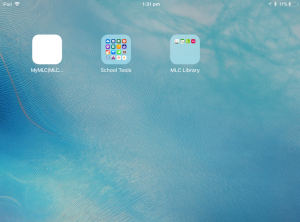
Add my.MLC to Home Screen
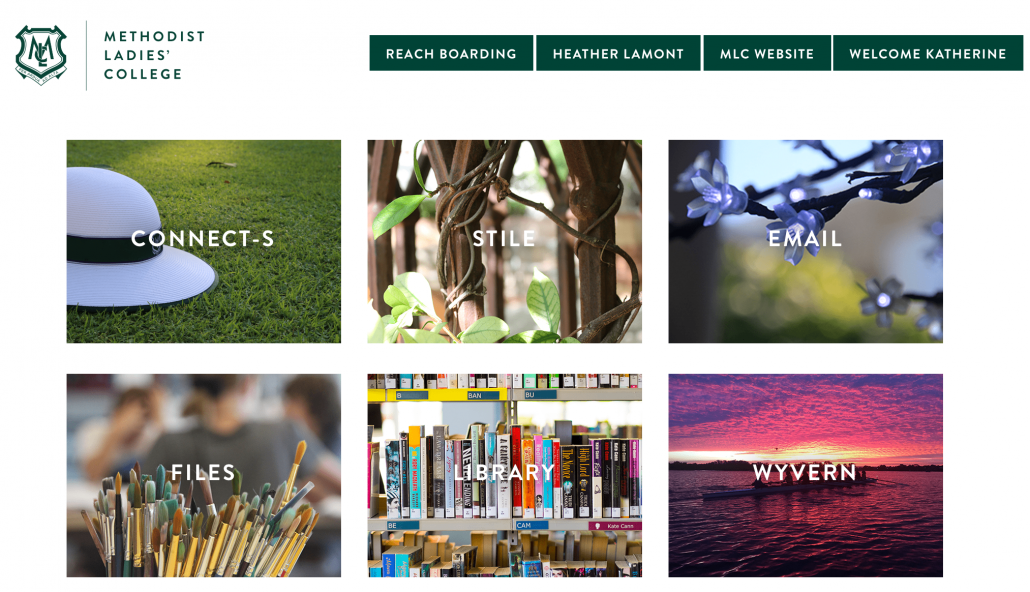
This is the most important link to have on your iPad! From here you can access:
- Connect-S
- Office 365
- Files – Your home drive & Student Drive
- Stile
Make sure you can get to this link easily!
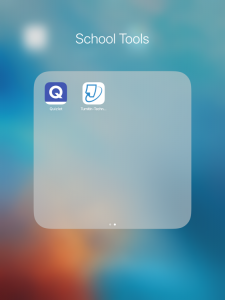
Make sure you have the following Apps downloaded and website links added to a “School Tools” folder.
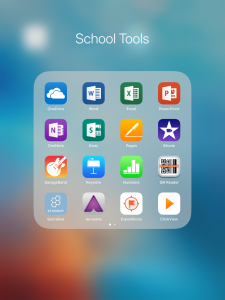


Office 365
Download the Apps
Add to Home Screen
- You can use these applications from either the app or in your browser
- When asked to log in, use your MLC email and MLC network password


Apple iWork Apps






ClickView provides quality educational videos.
You can access the videos via the library website, ClickView website or the ClickView App.
You can even record videos using your iPhone or iPad, upload videos to your personal Workspace and share them with your entire school.

Turnitin website – Add to your homescreen
This is a tool to help you improve your writing and avoid plagiarism. Your teachers will give you more instructions about when and how to use it.

Scan QR Codes with this tool. You’ll find them on all sorts of things, in all sorts of places.

You’ll need this when your teacher’s prompt’s you to join.


Aurasma is changing the way we interact with the world. Discover augmented reality experiences, create your own Auras, and share with friends.
Sign up for a free account.
Follow ‘MLCLIS’ to enjoy augmented reality created by MLC students for fiction books in the library!

Google Expeditions is a virtual reality learning tool that lets you explore or join immersive virtual trips all over the world.
Once you have all of these apps downloads and links added to your homescreen move them together into a folder titled ‘School Tools’.
The following apps and links will give you easy access to print and digital resources for your research and reading for enjoyment. Make sure you have them added to a folder titled ‘MLC Library’.
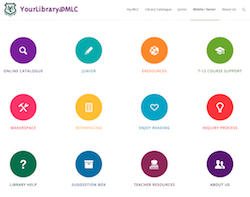
MLC Library – Add to Homescreen
Access:
- Course Support
- Find support to help you with a specific research assignment. Created by your teacher librarians with your teachers, it’s a smart way to start your research, as it will give you the best places to gather your information. Always look here first before you searching the free internet (ie Google).
- eResources
- Find sources of online information, such as encyclopedias and databases, tailored for your research needs at MLC. You will find ebooks, articles, videos, images, news and more. This is the next best place to gather information for your research tasks before going searching the free internet.
- Inquiry support
- Be guided through your research process and find more digital tools to help you at each stage of your research from brainstorming/mindmapping, notetaking, referencing and communicating/ presenting your work.
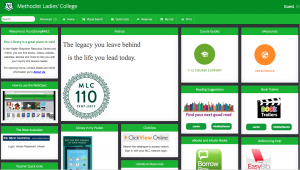
Library Catalogue – Add to Homescreen
Search the catalogue to help you find:
- Fiction and Nonfiction books
- eBooks
- Documents
- ClickView
- Websites
All of the above have been selected carefully by your Teacher Librarians for suitability to your subjects, reading levels and educational quality.
The BorrowBox app makes it easy to browse, borrow and read or listen to your library’s eBooks and eAudiobooks anywhere, everywhere.
Instructions to set up BorrowBox can be found HERE

Twig – Add to Homescreen
Twig provides digital media resources on a range of Mathematics, Science and Social Science topics.
Once you have all of these apps downloads and links added to your homescreen move them together into a folder titled ‘MLC Library’.
Storage options for your documents and files include:
- Your personal device
- Files (via my.MLC)
- OneDrive
- iCloud
 OneDrive
OneDrive is part of your Office 365 school subscription.
It will allow you to save, retrieve and share your documents, photos, and other files from your iOS device, computer (PC or Mac), and any other devices you use.
Watch the following videos:
Get set up and stay organised
Use the App OR Browser version to:
- Create a folder for each of your subjects.
- Try saving/ uploading a recent file to one of your subject folders
Share and Collaborate
- Watch the demonstration to see how easy it is to allow others to view your work and how to work in groups on the same document.
- CLICK HERE for instructions.
Find more OneDrive training videos
Choose the videos under the Work or School heading.
Have you found this workshop helpful?