
Yr 7 English – Book Trailer Task
The focus
You are to create your own 1-2 minute book trailer that promotes a novel you have read this year for a specific audience.
A book trailer, like a movie trailer, aims to use evocative imagery, music, sounds and words to promote interest in reading the novel.
Essential Questions
What ‘sells’ a novel?
How does a book trailer make a novel appeal to a specific audience?
What codes and conventions are used in an effective book trailer?
How can I take what I know about a novel and persuade others to read it?
Click through to the Task Outline and each activity below to help you complete this task.
The Task
Create a 1-2 minute book trailer to promote a novel you have read this year for a specific audience.
Task steps:
- Pick a novel. One that you have read this year and is suitable for your target audience.
- Produce a statement of intent that establishes your plan for the trailer. It should explain the creative and directorial choices you have made and how you are targeting a specific audience.
- Plan and storyboard the trailer.
- Create the book trailer.
- Present your book trailer in Week 10 alongside your oral presentation.
It should demonstrate your understanding of:
- Purpose & Audience
- Reading the novel
– characters,setting, plot (be careful not to give away too much, i.e. no spoilers), theme (the big idea), genre
- Tone/mood
- Generic conventions (SWAT Codes)
– symbolic codes (images, setting, costume, gestures, etc)
– Written codes (words, font, size, etc)
– audio codes (sound effects, music, dialogue, voice over etc)
– technical codes (i.e. images, camera movement, angles and shots) - Persuasive techniques – How have you made the book appealing to the target audience? Will they want to buy/ read the book?
Activity 1: What is a book trailer?
Review a range of professional and amateur made book trailers.
- In groups of three view 3 publisher made and 3 amateur book trailer samples listed below and discuss what you think is good and bad about each of them.
- Using the Book Trailer Review Template below write up your reasons for why the book trailer is good or bad.
- Write a definition of what a book trailer is and list the features you think make a good book trailer.
- You may download the template and complete it digitally if you prefer.
Sample Book Trailers
Publisher Samples:
See more trailers from this Book Trailer YouTube playlist
Amateur Samples (Library, Student or Teacher Made Book Trailers):
Activity 2: Analysing your novel
- Download the Novel Analysis template.
- Decide on the novel for your book trailer (one that you have read this year).
- Consider what type of person you think this novel will appeal to (i.e. age, gender, interests etc) and decide upon your target audience.
- Use the Novel Analysis template to summarise the main narrative conventions as outlined in this Novel Analysis Guide and plan and make notes of your ideas for what visual images, music, sounds, and words will help to convey the main elements of your story in your trailer for your target audience.
Homework: Complete your Novel Analysis for you chosen novel. Remember to save your work regularly if you are working digitally.
Activity 3: Understanding Copyright and Creative Commons
Learning intention:
Students are to apply practices that comply with legal obligations regarding the ownerships and use of digital products and resources.
Whenever you use someone else’s work it is important to acknowledge the owner. You can do this for the images and music you use in your book trailer by adding a credits list at the end of the trailer (i.e. like the credits list you see at the end of a film).
In this activity you will learn why it’s important to do this.
Have you ever seen these images? What do you think they mean?
All rights reserved
Some rights reserved
These images are related to a concept known as
Intellectual Property.
Property is something that someone owns and there are laws to prevent people stealing other peoples property.
Creative works and inventions that are the result of original ideas are also property, and as this is property created with the mind, or intellect, it is called intellectual property (Freedman, 2008).
It’s important for you to be aware of how the legal obligations of intellectual property apply to your use of print and digital resources, not only when you work on your book trailer assignment, but when you use the ideas or works of other people in any work you do.
Let’s explore this further…

Stealing ideas created by dooder: Freepik.com
1. Watch this ClickView video to find out about copyright and creative commons.
Copyright: Creative Commons and Attribution [Video]. (2018). ClickView.
And find out more about Creative Commons Licenses HERE
2. With your Teacher Librarian, watch and discuss the Prezi presentation below.
Optional: You can watch this ClickView video to find out more about Intellectual Property, copyright and creative commons.
McKenzie, B. (2014). Understanding intellectual property [Video file]. Retrieved from ClickView database.
How do you acknowledge other people’s creative work in your credits list ?
You need to ask youself:
Is the resource covered by a
Creative Commons License OR the Fair Use (10%) Copyright Rule?
Creative Commons License: Add an attribution
Add a Creative Commons attribution to your credit list using the format:
“Title of Resource” by Name of Creator is licensed under [insert CC License].
Include the link to the resource, the creator and the license.
For example you may have used the following Creative Commons image:
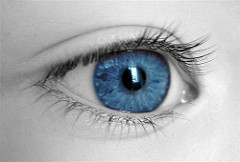
The attribution to include in your credits list would be:
“Blue” by Payxe is licensed under CC BY-NC-ND 2.0.
Click here to see another example of the best way to write a CC attribution.
Fair use (10%) copyright rule: Add an Image reference.
That is you have sourced material using copyrighted images or music.
Create a free account for Citefast to help you create an APA (Version 7) reference to place in your credits list. It should use the format:
Name of Creator. (Date created/published). Title/ Description of Image [Image]. Website URL
For example, imagine you have use the following image:
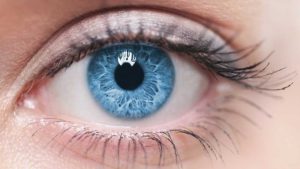
The APA Reference would be:
Krzeslak, P. (n.d.). Macro image of human eye [Image]. https://www.iflscience.com/plants-and-animals/all-blue-eyed-people-have-common-ancestor-0/
Note: The URL is for the website the image comes from.
Note 1. – Some free image websites like pixabay and freepik have their own attribution format. Make sure you find and follow this. For example:
Stealing ideas created by dooder: Freepik.com
Note 2. – It’s not easy placing hyperlinks inside an iMovie for your booktrailers. Feel free to try and work it out, but as long as you insert an attribution for the free to use images then you have demonstrated good digital citizenship.
Put your credits into a list in alphabetical order at the end of you book trailer.
For example:
“Blue” by Payxe is licensed under CC BY-NC-ND 2.0.
Krzeslak, P. (n.d.). Macro image of human eye [Image]. https://www.iflscience.com/plants-and-animals/all-blue-eyed-people-have-common-ancestor-0/
ACTIVITY: Your Teacher Librarian will now lead you through creating your own Creative Commons attribution and image reference.
Activity 4: Sourcing your online content.
Frequently Asked Questions
Where can I find out more about Creative Commons?
CLICK HERE for more about Creative Commons
What image size should I use?
The ideal resolution size is about 1280 x 720 pixels. A minimum width of 680 pixels should be okay. Let your teacher show you how you can find this out.
Just make sure the image size is large enough that the image does not appear blurry in your video.
Can I use an image that has a watermark?
A watermark is a faint image over the top of another image to protect the original.
The watermark indicates that the owner of the image doesn’t want the image to be copied and usually expects others to pay to be able to have a watermark free copy.
If you use it, it not only looks unprofessional, it is also infringing copyright.
A watermarked image should never be used in any presentation ever!
If you are still unsure ask your teacher.
Can I use music downloaded from a YouTube video?
While there are many digital converters available online to do this, you need to consider if this practice is ethical.
Check YouTube Terms of Service which state:
Australia –
“You may access Content for your information and personal use solely as intended through the provided functionality of the Service and as permitted under these Terms of Service. You shall not download any Content unless you see a “download” or similar link displayed by YouTube on the Service for that Content. You shall not copy, reproduce, make available online or electronically transmit, publish, adapt, distribute, transmit, broadcast, display, sell, license, or otherwise exploit any Content for any other purposes without the prior written consent of YouTube or the respective licensors of the Content.”
Can I use music from a streaming service like Spotify or Apple Music?
No. It is against the terms and conditions of these platforms. Even if you pay for a subscription. For more information CLICK HERE.
If you have purchased an individual song and provide a credit then it may be okay within the confines of your school work and only if it is presented in class.
You are better off using the free music websites listed below.
Where can I access royalty free images and sound?
Use the websites listed below.
Most of these websites provide Creative Commons licensed material.
How can I keep track of what I am using?
1. Make sure you have a Book trailer folder in OneDrive to save images and downloaded music/ sfx files to.
2. Keep a record of source details as you find suitable audio and visual (AV) content for your trailer.
It may help you to use the AV Content Register or create your own table of details in a Word docuemnt, such as:
Creator
Title
URL
Licence type
This will help you to complete your credits list at the end of your trailer as well as easily import your sources into iMovie.
The following formats are recommended to include in your credits list:
Creative Commons
Title of Resource by Name of Creator is licensed under [insert CC License].
Eg.
“Blue” by Payxe is licensed under CC BY-NC-ND 2.0.
Fair Use
Name of Creator. (Date). Title/ Description of Image [Image]. Retrieved from website URL
Eg.
Krzeslak, P. (n.d.). Macro image of human eye [Image]. Retrieved from http://lemerg.com/908502.html
What should my credits list at the end of my book trailer look like?
Below is a suggested format for your credits.
Don’t forget to add yourself to the credits list if you create your own photographs, video or music material, along with anyone who appeared as an actor or musician etc.
For materials not covered under a Creative Commons license make sure you check the Terms & Conditions of the website for usage terms. You can also use the fair use (10%) rule where you have accessed material legally.
Format your attributions and references according to the examples given given HERE.
Ask your teacher or teacher librarian if you need help or have any questions.
Credits
Created by [Insert your name]
Images from
Insert attributions/ references in alphabetical order
Music and Sound from
Insert attributions/ references in alphabetical order
Websites to find Creative Commons and Royalty free AV Content
Images
- Google Images Advanced Search: allows searches for CC licensed images through its advanced search function by setting the “usage rights” parameters to be “Free to use, share, or modify”.
- CSIRO’s Science Image. contains over 4000 science and nature images. These are free to use use with attribution to CSIRO.
- Encyclopaedia of Life. Contains over 2.9 million images depicting life on Earth. Some, but not all, of this content is CC licensed.
- Flickr. (Hint: Tick box “Only search within Creative Commons-licensed content”)
- Stock Up. Many of the photos on this site may be freely used even without an attribution, even though it would be appreciated. You can check the Terms of Service
- Stockvault is a photo sharing website where you can use photos for your personal, educational and non-commercial work
- Unsplash. Crediting isn’t required, but is appreciated and allows photographers to gain exposure.
- The Wellcome Institute. Find thousands of freely licensed digital books, artworks, photos and images of historical library materials and museum objects.
Music and Sound Effects
- dd.ccMixter is a community music site that features music licensed under Creative Commons. You can use this music for free by providing credit. Highly recommended. Click here for instructions on how to download music from this site.
- FreeSFX allows you to use their sound effects and music freely for any project as long as you include the website URL in your credits as follows: http://www.freesfx.co.uk. Highly recommended
- FreeSound allows you to freely use their sound effects under a Creative Commons license. You will need to set up an account to access the free download and you need to make sure you credit http://www.freesfx.co.uk as the source.
- FindSounds is a useful search tool for short sounds and sound effects. Recommended.
- Incompetech Some rights are reserved but alot of the music on this site is licensed under Creative Commons. Recommended
- Pixabay Some rights are reserved but alot of the music on this site is licensed under Creative Commons. Recommended
Homework: Find or create your content and generate your credits list as you go. Save your work.
Activity 5: Storyboard your Ideas.
As you were sourcing your content you were also getting ideas of how you might use it – the sequence or order that you might put the images, video snippets, sound and music and words in.
Creating a storyboard will help you to sequence your ideas for your book trailer frame by frame and provides a better finished product by giving you a visual outline to work from. It will also allow you to manage time efficiently by seeing at a glance how you will use the pictures and sound effects and/ or music you have gathered. It is even common practice for film producers to use some sort of Storyboard template to help them work out their ideas for a film before filming.
When you create your storyboard consider:
- How to ‘hook’ the viewer’s attention to get people excited to want to read it!
- How you want your trailer to look and… make sure you use images and text. Video snippets are optional. You might like a trailer compiled of still images or a mixture of stills and video. Use your iPad to take your own original photo’s and video if you wish to do so.
- Using a musical background, sound effects and/or voice over to add interest and emotion, i.e. what kind of mood do you want to create? Mysterious? Happy? Do you want the music to have lyrics, or just instrumental music? If you choose music with lyrics, are the words appropriate for the novel?
- What transition technique will you use to change from one scene to the next, i.e fade to black, crossfade, or other kind of effect. Remember to keep it simple.
- Make sure you include a credits slide as the end frame to acknowledge other people’s work you have used in your trailer.
Download and use the StoryBoard template to help you plan your Book Trailer.
Homework: Complete your Storyboard
Activity 6: Creating with iMovie.
iMovie on your MacBook
Work through the iMovie Help lessons to learn how to
- open a new project
- add and sequence your images and sounds
- add text, transitions and effects
- how to export your iMovie book trailer to watch in class, or at home
If you already know how to do this make sure you help to show others how to.
iMovie on an iPad
Here is a help video to show you the basics of using iMovie on your iPad.
You could also work through iMovie Help for iPad
1. Create a Movie
Create a movie project
Add video clips and photos
Edit video clips and photos
Add and adjust audio
Add and edit titles
Modify transitions
It’s time to use iMovie and have some fun.
You have now done all your planning which should make this part easy. Using your storyboard as a guide, you can now work on creating your Book Trailer in iMovie.
- Begin by placing your sourced images and any video footage in sequence.
- Add any text slides you have planned in the sequence.
- Add transitions and any effects.
- Complete any edits to the images and text.
- Add music and sound effects.
- Create a credits slide to acknowledge other people’s material you have used.
- Complete any final edits.
- Export you book trailer and save it to the S Drive.
If you get stuck at any time make sure you ask for help. Either your teacher or another class member will be able to assist you.
Have fun !
Activity 7: Oral Presentation with Adobe Spark.
Well done!
By now you have most likely completed your Book Trailer. It’s now time to present it to the class in an oral presentation in which you discuss your creative choices.
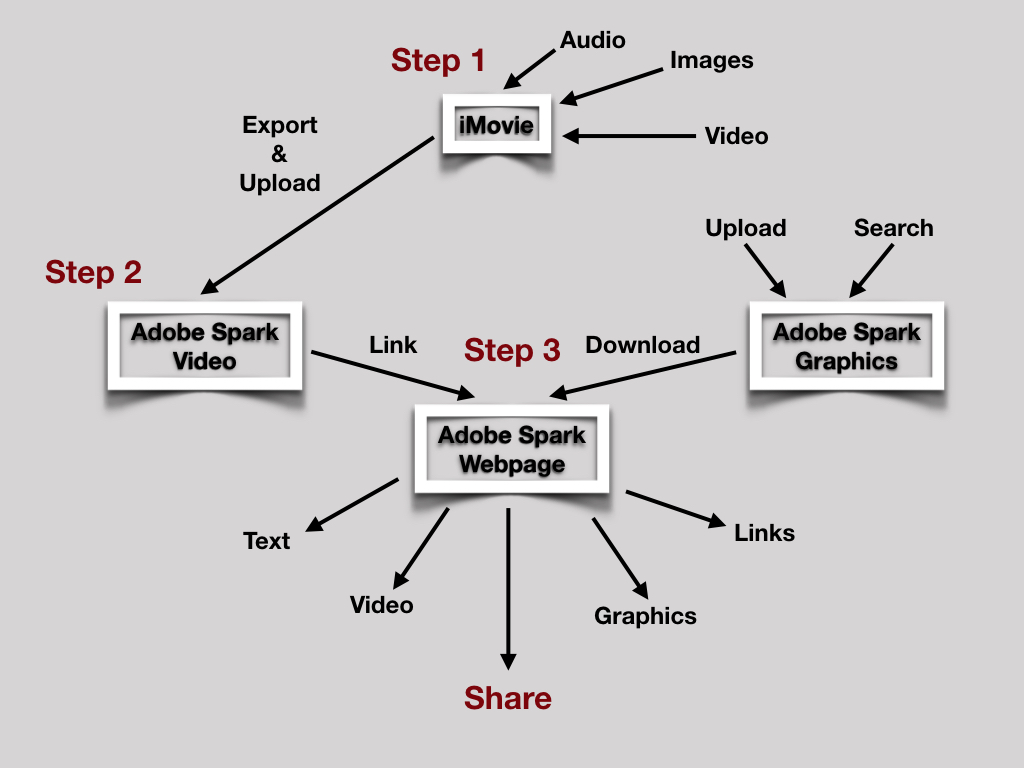
For this you will create and share a webpage with Adobe Spark.
Why – A webpage will be used to:
- Store, share and play your completed book trailer movie.
- To support your oral presentation in which you will discuss your creative choices.
- Allow for additional forms of information about the book. For example, images and text relating to main characters, themes, genres, similar books etc.
- Create images and graphics that reflect the nature of the book.
- Provide links to other related information.
How – All MLC students (Year 7 – 12) have an Adobe Creative Cloud licence.
Adobe Spark allows for the simple creation, integration and sharing of Webpages, Videos and Graphics to help students tell their stories and share their learning in rich, meaningful ways.
Use the image below to help guide your Digital Workflow.
Reference List
Freedman, J. (2008). Intellectual Property. New York, NY: Rosen.